
Support/Resources/How do I revise a submission?
How do I revise a submission?
Jul 8, 2026
SREDr is designed to get a claim to roughly 80% readiness. Your review and edits bring it to 100% for filing. Treat the first writeup as a structured draft, then use the full revision toolkit—not just a single regenerate—to finish the claim.
Guiding principle
- AI draft (~80%) — evidence gathered, projects grouped, Lines 242/244/246 drafted.
- Consultant finish (100%) — technical judgment, tone, CRA defensibility, financials, and copy for the T661.
How to use
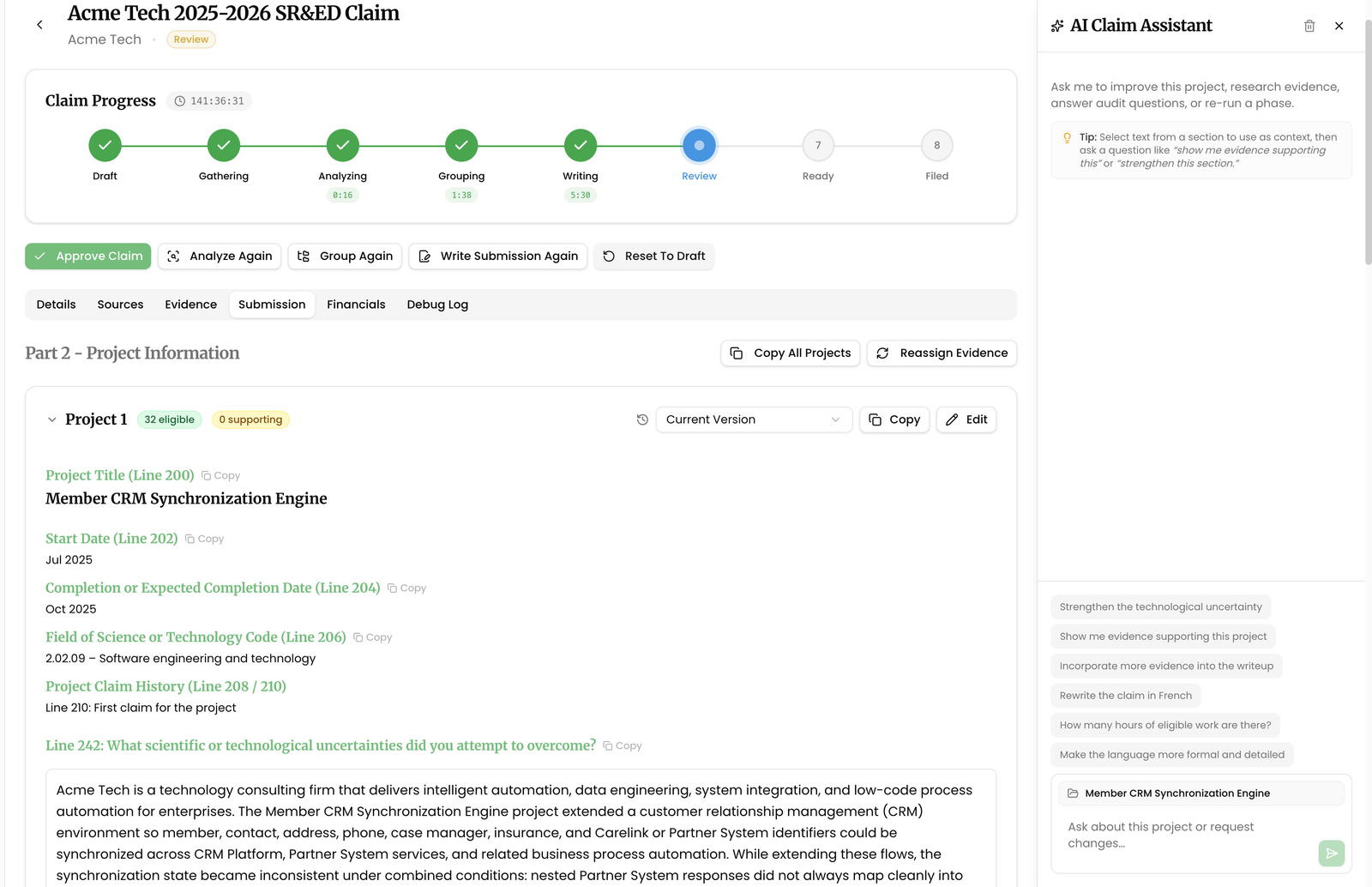
- Open Submission when status is Review. Read each project end-to-end before changing pipeline settings.
- Edit manually in the rich text fields. Stay inside Line 242/244/246 word limits and use Copy / Copy All Projects when moving text to your filing package.
- Coach with AI Claim Assistant — open the assistant, optionally select text, and ask for targeted rewrites. Accept only changes you would defend. See the dedicated coaching How-To for prompts.
- Correct scope on Evidence — set SR&ED Eligible (Eligible / Support Work / Not Eligible / Pending Review) before you regroup or rewrite so the narrative matches the work you are claiming.
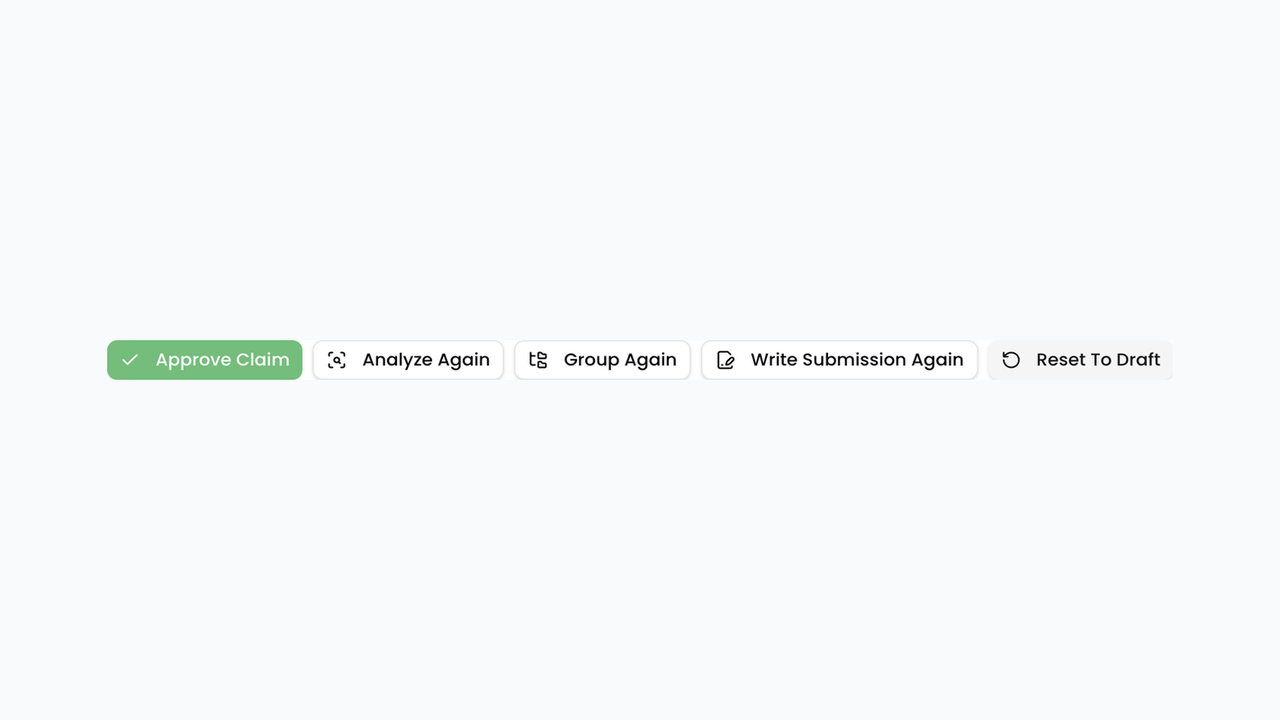
- Choose the right redo from the claim header (confirm dialogs explain what is kept vs cleared):
- Analyze Again — clears evidence AI analysis and deletes projects/writeup; keeps evidence rows; re-runs from analyze. Optional Analysis Instructions.
- Group Again — snapshots versions, recreates projects, clears writeup; keeps evidence analysis. Optional Project Grouping Instructions.
- Write Submission Again — snapshots versions, regenerates writeups only. Optional Submission Writing Instructions.
- Prefer the narrowest redo that fixes the problem.
- Reset To Draft only when you intentionally want to wipe evidence, projects, submission content, and job state. This cannot be undone.
- Restore from versions if a regeneration went wrong—open history, pick a prior version, Apply Revision.
- Shape future runs with Custom Instructions at agency, personal, or claim level (Analysis / Grouping / Submission Writing), then re-run the affected stage.
- When narrative and Financials are filing-ready, Approve Claim.
Related
- How do I use the Submission for my T661 Part 2?
- How do I coach the AI while editing a writeup?
- I regenerated by mistake — how do I get my draft back?
- How do I make claims match our agency's writing style?
- Stage-Specific Claim Regeneration Controls
- In-Claim AI Chat Assistant for Submission Revisions
- Claim Project Version Snapshots and Recovery
Next article
How do I coach the AI while editing a writeup?