
Support/Releases/Multi-Factor Authentication and Account Admin Role
Multi-Factor Authentication and Account Admin Role
May 2, 2026
MFA was added with per-agency, per-role enforcement and device memory, alongside a new Account Admin role scoped to a single client account. Given that claims contain sensitive financial and technical IP data, MFA reduces the risk of unauthorized account access, while the Account Admin role lets a client manage their own users and sources without gaining visibility into other clients' claims or data.
How to use
Set up MFA (users)
- Go to Settings → Personal.
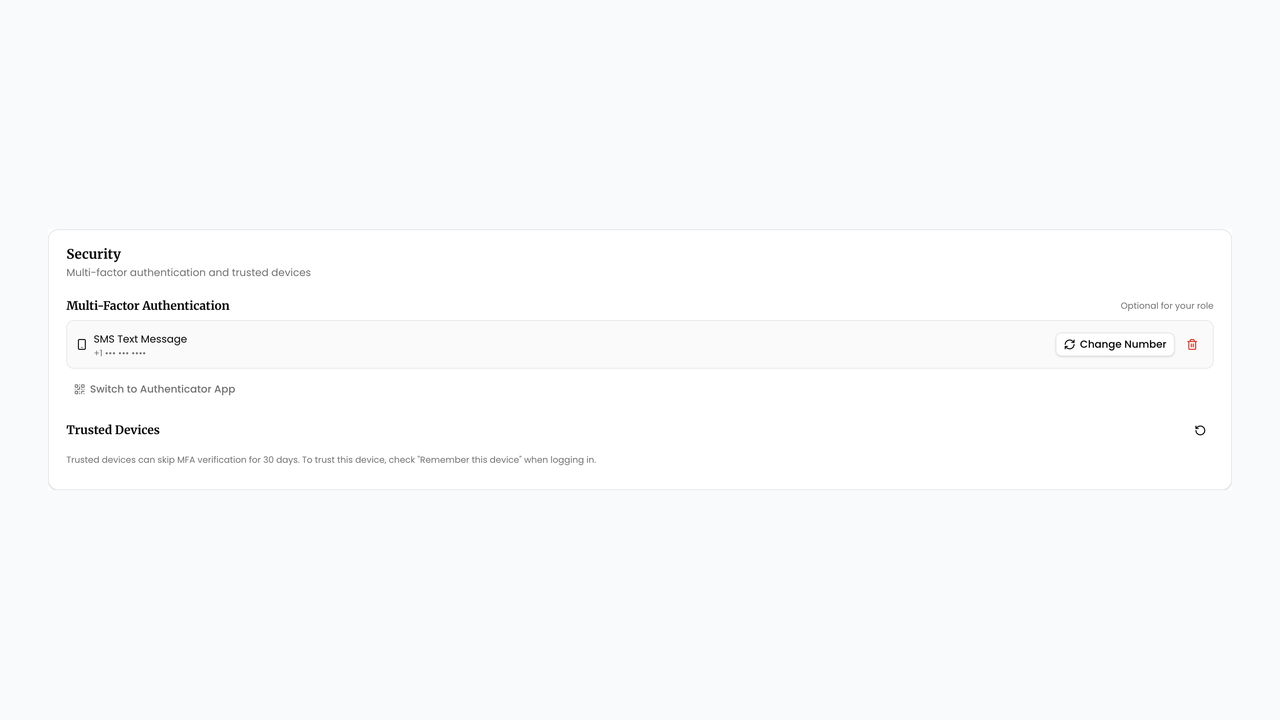
- Open the Security section and set up SMS or an authenticator app.
- On your next sign-in, complete MFA verification.
- Optionally check Remember this device to skip MFA on that device for 30 days.
Require MFA for your agency (admins)
- Go to Settings → Agency.
- Open MFA Requirements and choose which roles must use MFA.
- Save. Affected users will be prompted to enroll.
Invite an Account Admin
- Open Users and invite or create a user with the Account Admin role.
- Assign them to the specific client Account.
- They can manage that account’s users, sources, and claims only — not other accounts or agencies.
Next article
Clickable Evidence Citations in Submission Text